How do I use SYNC voice commands?
You can use SYNC®* voice commands to control your AM/FM radio, SiriusXM®*, USB media player, or Bluetooth® audio device.
Utilizing SYNC Voice Commands
Select your SYNC generation from the drop-down options below to learn how to operate your SYNC system with voice commands. If you need assistance determining the generation of your SYNC system, select the first drop-down option.
Identifying Your Vehicle's SYNC Generation
Select a resource in the table below to help you identify your vehicle's SYNC generation.
| Resource | Instructions |
| SYNC and Navigation Updates page | Either:
Your SYNC generation will appear on the right side of the page under the SYNC Current Version heading. |
| SYNC Visual Reference Guide | View example images of SYNC generations that Ford has offered. |
SYNC 4A
Enabling Ford Assistant
To turn on voice commands:
- Select the Vehicle Drawer on your vehicle's SYNC screen.
- Choose the Settings icon.
- Select Ford Assistant.
- Choose Listen for Wake Word.
Note: “OK, Ford” is the default wake word, but the other options include “OK Ford SYNC” or “Hello Ford.”
Setting the Wake Word
You can set the Wake Word instead of using the default. To do so:
- Select the Vehicle Drawer on your vehicle's SYNC screen.
- Choose Settings.
- Select Ford Assistant.
- Choose your preferred Wake Word.
Using Voice Commands
- Once the wake word is selected, you can say it and then state a voice command.
A short press of the Push-to-Talk button on the steering wheel can be used instead of the wake word.
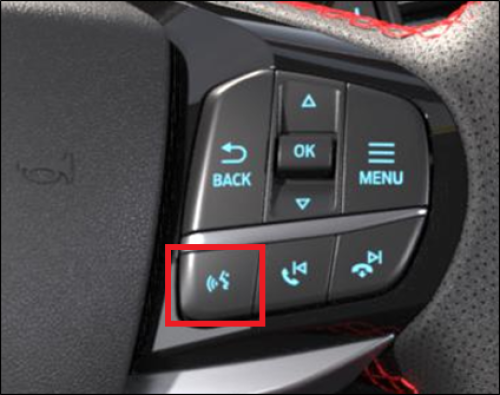
Note: A long press of the Push-to-Talk button will alert Android Auto™ or Apple CarPlay®, if connected. Your voice commands will go through the app instead of the SYNC system.
SYNC 4
Enabling Ford Assistant
To turn on voice commands:
- Select Settings on your vehicle's SYNC screen.
- Choose Ford Assistant.
- Select Listen for Wake Word.
Note: “OK, Ford” is the default wake word, but the other options include “OK Ford SYNC” or “Hello Ford.”
Setting the Wake Word
You can set the wake word instead of using the default. To do so:
- Select Settings on your vehicle's SYNC screen.
- Choose Ford Assistant.
- Select your preferred Wake Word.
Note: “OK, Ford” is the default wake word, but the other options include “OK Ford SYNC” or “Hello Ford.”
Using Voice Commands
- Once the wake word is selected, you can say it and then state a voice command.
A short press of the Push-to-Talk button on the steering wheel can be used instead of the wake word.
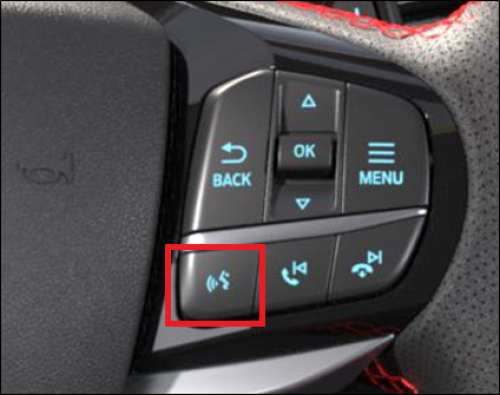
Note: A long press of the Push-to-Talk button will alert Android Auto or Apple CarPlay, if connected. Your voice commands will go through the app instead of the SYNC system.
SYNC 3
Press the Voice Control button on the steering wheel.
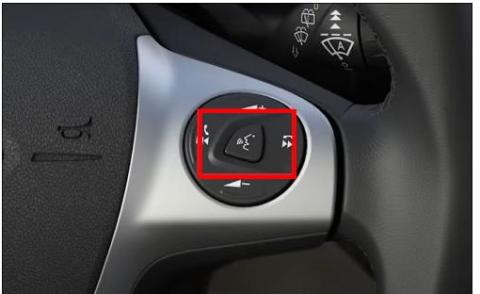
- Say a voice command.
Note: When Apple CarPlay or Android Auto is active, SYNC 3 Voice Recognition is disabled, and voice commands will be unavailable.
SYNC With MyFord Touch
To use voice commands with SYNC with MyFord Touch®, press the Voice button on your steering wheel. A message will appear on your SYNC screen telling you your vehicle is "listening" and ready for your voice command.
- You can press the Voice button and say, "What can I say?"
- You can select the question mark icon on your SYNC screen for a list of suggested commands.
- You can press the Voice button and say, "Help." For example, to get help with phone commands, you can say, "Phone help."
- For a complete list of commands:
- Select Settings on your vehicle's SYNC screen.
- Choose Help.
- Select Voice Commands.
When you see a "Success" or "Failure" message on your SYNC screen, the voice session is over, and you will have to press the Voice button again to start a new session.
Important: Your phone must be paired with and connected to SYNC.
Example Voice Commands
These are commonly used voice commands for SYNC. For a comprehensive list, reference your vehicle's Owner's Manual.
Basic Voice Commands
Phone Voice Commands
Audio Voice Commands
Mobile Voice Apps Commands
| Navigation Voice Commands, if Equipped
Climate Voice Commands, if Equipped
|
Additional Information
What should I do if I am having issues with SYNC voice commands?
Actual screens may vary. See your Owner’s Manual for information specific to your vehicle.
*Don’t drive while distracted or while using handheld devices. Use voice-operated systems when possible. Some features may be locked out while the vehicle is in gear. Not all features are compatible with all phones.
**All SiriusXM services require a subscription. Service subject to the SiriusXM Customer Agreement and Privacy Policy; visit www.siriusXm.com to see complete terms and how to cancel, which includes calling 1-866-635-2349. Some services, content, and features are subject to device capabilities, an active data connection enabled in the vehicle and location availability. All fees, content and features are subject to change. Content varies by subscription plan. Content varies by subscription plan. SiriusXM and related logos are trademarks of Sirius XM Radio LLC and its respective subsidiaries. Certain features and/or content may not be available unless an active data connection is enabled in the vehicle. Content varies by SiriusXM subscription plan.
The Bluetooth® word mark and logos are registered trademarks owned by Bluetooth SIG, Inc. and any use of such marks by Ford Motor Company is under license.
Android Auto is a trademark of Google LLC.
iPhone, Apple CarPlay, and Siri are trademarks of Apple Inc., registered in the U.S. and other countries.