How do I reset the SYNC system?
To reboot your infotainment system, hold down a specific button combination on your vehicle's steering wheel or console.
Note: A system reset, also known as a module reset, is designed to restore your infotainment system functionality without deleting any data that you have stored, such as paired phones, radio presets, and saved navigation points.
Resetting Your SYNC®* or Ford Digital Experience®* Module
Important: The vehicle must be on and running in an open, well-ventilated, and safe area.
Identify whether your vehicle has Ford Digital Experience or determine your SYNC generation using the drop-down option below or the SYNC Visual Reference Guide. Select your system from the drop-down options below for information on performing a module reset.
Note: The actual location and appearance of the buttons can vary by vehicle year and model. Refer to your Owner's Manual for information specific to your vehicle.
Identifying Your SYNC Generation
Select a resource in the table below to help you identify your vehicle's SYNC generation.
| Resource | Instructions |
| SYNC and Navigation Updates page | Either:
Your SYNC generation will appear on the right side of the page under the SYNC Current Version heading. |
| SYNC Visual Reference Guide | View example images of SYNC generations that Ford has offered. |
Ford Digital Experience
There are two different ways the Ford Digital Experience screens may be reset. If the screen does not properly reboot, attempt the alternate method.
Note: The power button for the audio system is often located in the center of the vehicle’s Volume (VOL) knob.
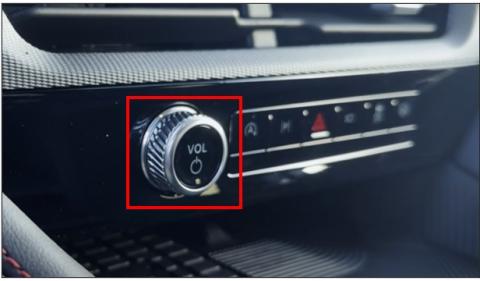
Method 1: Quickly press the audio system power button five times.
Method 2: Press and hold the audio system power button for 10 seconds. Upon releasing the button, you may hear a pop from the vehicle's speakers.
Contact your preferred Ford Dealer if the screens do not reboot properly.
SYNC 4A
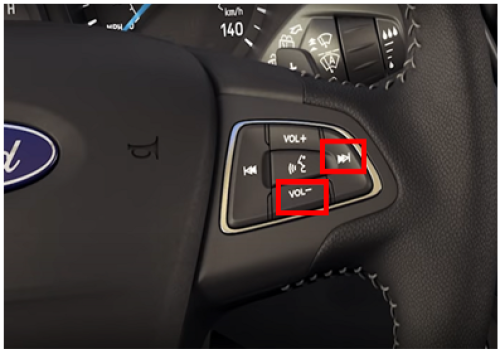
Hold the VOL- button and the seek-right button on the steering wheel at the same time for up to 10 seconds.
Note: The VOL- button and the seek-right button may be on opposite sides of the steering wheel.
SYNC 4
| Vehicles with Power and Seek-Right Buttons | Vehicles Without a Power Button |
Hold the power button and the seek-right button at the same time for up to 10 seconds.  Note: If there is a physical power button on the center console but not a physical seek-right button on the radio, press the radio power button and the seek-right button on the steering wheel. | Hold the OK button, pressing down towards the Vol- button and the seek-right button at the same time for up to 10 seconds. 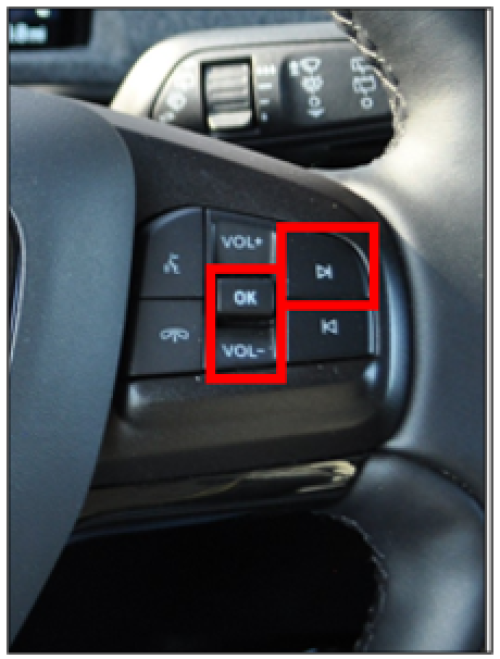 |
SYNC 3
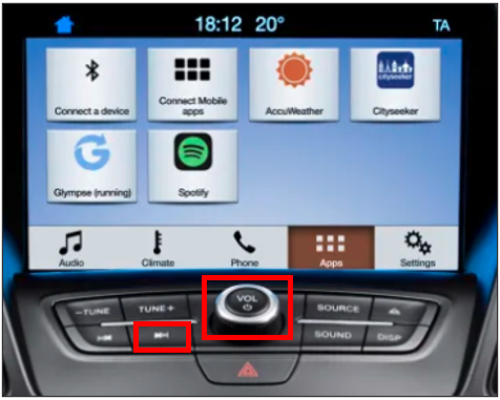
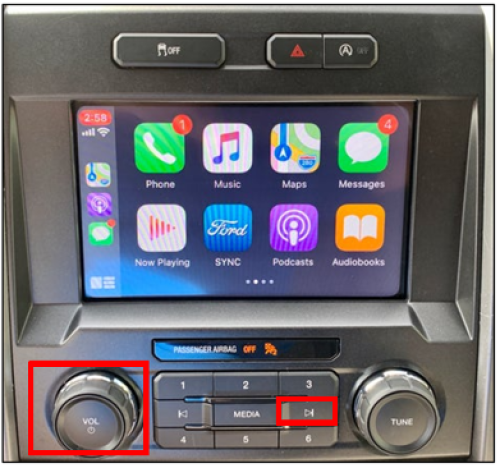
Hold the power button and the seek-right button at the same time for up to 10 seconds.
| Option 1 | Option 2 |
 |  |
SYNC With MyFord Touch
To perform a module reset on a vehicle equipped with SYNC with MyFord Touch®, hold the power button and the seek-right button at the same time for up to 10 seconds.
SYNC Gen 1.1
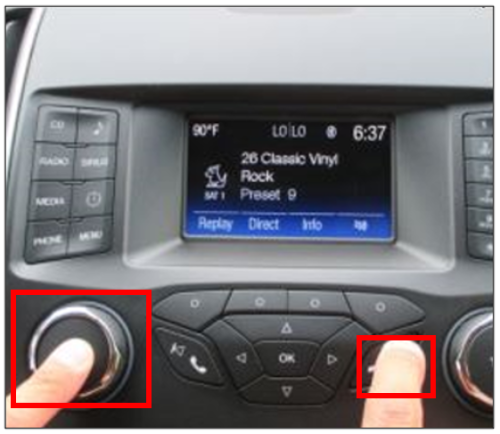
Hold the power button and the seek-right button at the same time for up to 10 seconds.
Additional Information
How do I perform a SYNC master/factory reset?
*Some Ford Digital Experience features require a Connectivity plan. Don’t drive while distracted or while using handheld devices. Use voice operated systems when possible. Some features may be locked out while the vehicle is in gear. Not all features are compatible with all phones.
**Don’t drive while distracted or while using handheld devices. Use voice-operated systems when possible. Some features may be locked out while the vehicle is in gear. Not all features are compatible with all phones.